Content Navigator
NOW COMPLETELY FREE!!!
-
Navigate through your project with ease
-
Best for large and diagonal projects
How does this work
Script shows all folder tracks and mirrors project hierarchy and folder state (expanded, compact). When you click on folder name inside the gui, only the children tracks of that folder will be shown. Timeline will focus on all the audio files available in that folder. This helps you navigate quickly, listen and edit certain sections of your project with ease.
ReaPack URL: http://premium.lkc.tools
The tool is installed from the same repo as LKC Render Blocks but from a different package.
You need to install it separately!

Basic Usage
- Left click on the folder name to focus on content
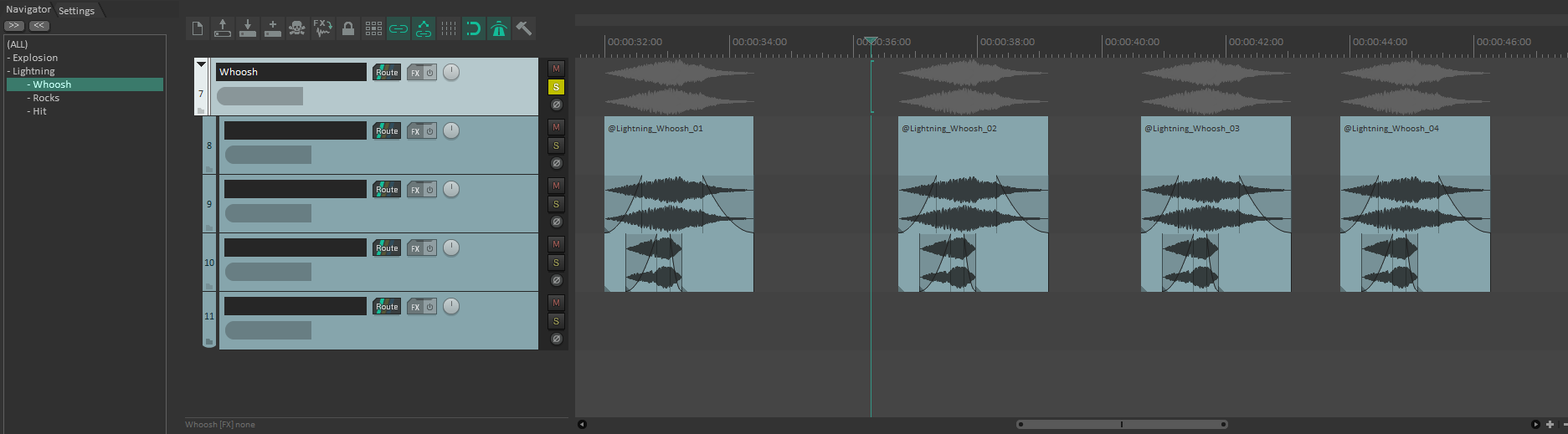
- Right click or Double click on folder name to toggle opening and closing of folders
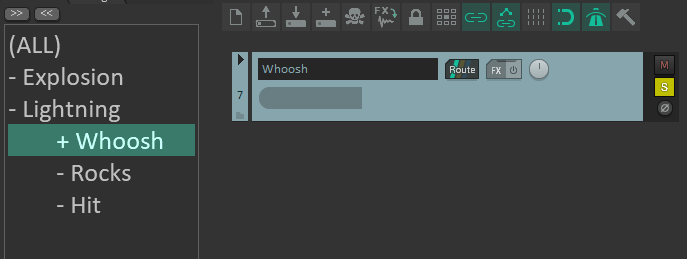
-
Middle click on folder name to jump to the next marker/region in the timeline
-
Click on (ALL) to show all project tracks
-
Clicking on
 buttons will expand and collapse all selected folder’s children respectively
 -
Using these buttons with (ALL) selected will expand/collapse the whole project
Special tracks
- Tracks named VIDEO will always be shown
- Tracks starting with ** will always be shown
- NOTE: Make sure to restart the script when you add/remove video or tracks with ** prefix
- Tracks starting with ## will always be hidden
Modifiers
From version 1.0 you can use modifiers to do multi selection, quick expand/collapse and to change jump behaviour on the fly.
- CTRL + Click - Multi Selection
- SHIFT + Click - Range Selection
- ALT + Right Click - Expand selected folder and its children
- ALT + SHIFT + Right Click - Collapse selected folder and its children
- ALT + Click - Overrides current JUMP settings
- ALT + Double Click - Rename selected track
Watch video tutorial to learn more.
Search Box
Type the name of track you want to display.

You can also use multiple terms, just separate them with comma (,)

NOTE: Search engine relies on folders being opened to properly show the tracks.
If that’s not the case you will see something like in the image below.

Use right click on search box to clear the text.
Preferences

NAVIGATION: Turn off to disable jumping to folder content, script wil behave like simple track manager - to close and open folders
LIST JUST FOLDERS: Turn off to show all project tracks in the list
Navigation Options

MINIMAL VIEW: Turn off to disable hiding of unselected folders
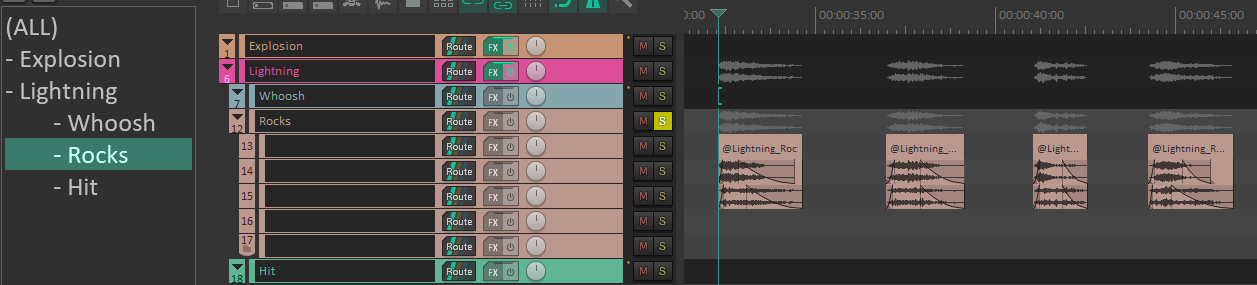
JUMP: Turn off to keep editing cursor always on the same spot, regardless of which folder is selected
ALT + Click - Overrides current JUMP settings (does the opposite):
- If JUMP ENABLED: It will ignore jumping
- If JUMP DISABLED: It will do the jump
SOLO: Turn off to disable soloing of selected folders
Settings
- Script can be resized
- Script can be docked and undocked with
 button in Settings tab
 - Remember to hit
 button after changing the options
Font Size
- You can change the font size for listed tracks


On Close Show All
- You can choose to show all project tracks when you terminate the script

Select Tracks

This option allows you to automatically change track selection when you navigate to a certain folder.
Vertical Zoom

This will vertically stretch all showed tracks if enabled. Works well for folders with a small or medium number of tracks in a folder, but if you have a lot of tracks then it will not be able to show them all at once.
Affect Mixer Control Panel
Choose whether you want the selection to affect both arrange view (TCP) and mixer (MCP) or just arrange view. This can be useful for composers who have separate needs for mixing and editing.
Indentation

Choose the amount of spacing between folders of different depths.


