How to use it?
Block concept
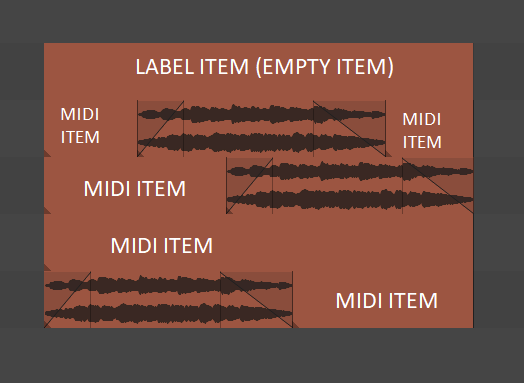
Every block consists of:
- one label item (empty item) used for names and notes
- content (audio and/or midi items)
- empty midi items
| NOTE: Block is still a group in the REAPER sense, so you need to have Options -> Item grouping enabled turned on! |

Packing
| NOTE: It is useful to have separate mouse modifiers for item selection and time selection, which REAPER does by default, but some people prefer to change this. Be sure to know what’s your case. |
- Make item selection
- Run LKC - RenderBlocks - Pack or Unpack.lua
- A new block will be created
| VIDEO: https://youtu.be/eUrynTC-vC4 |
Unpacking and Repacking
| NOTE: You can unpack multiple blocks, but you cannot pack or repack multiple blocks |
- Select your blocks using item selection
- Run LKC - RenderBlocks - Pack or Unpack.lua
- Your blocks will be unpacked, but label items saved
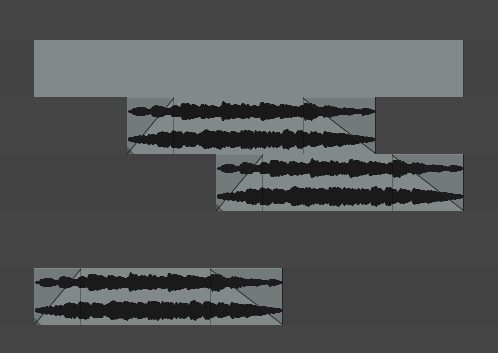
- When you are done with editing, select items including the label item, and run
LKC - RenderBlocks - Pack or Unpack.lua again
- Your blocks will be repacked
| VIDEO:https://youtu.be/oqHEnykhHIs |
Packing Clusters
| NOTE: You can pack AND unpack multiple blocks at the same time using this approach |
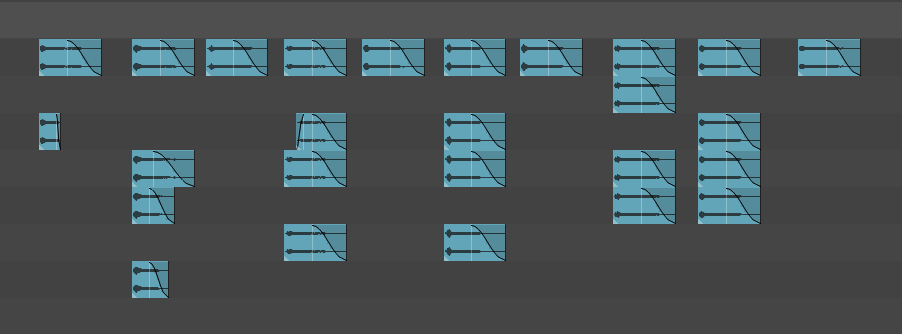
Every group of items that are horizontally and vertically overlapping is considered a cluster. This way you can pack multiple render blocks at once.
- Make item selection
- Run LKC - RenderBlocks - Pack clusters.lua
- A new block will be created for each cluster of items
Packing Clusters (vertical only)
If you want to pack items that are overlapping vertically only (within the timeline):
- Make item selection
- Run LKC - RenderBlocks - Pack clusters (vertical only).lua
- A new block will be created for each vertical cluster of items
---
Destroying blocks
- Make item selection (you can include multiple blocks)
- Run LKC - RenderBlocks - Destroy.lua
- Label and empty midi items will be destroyed
Naming
-
Make item selection (one or more blocks)
-
Run LKC - RenderBlocks - Enter name.lua
-
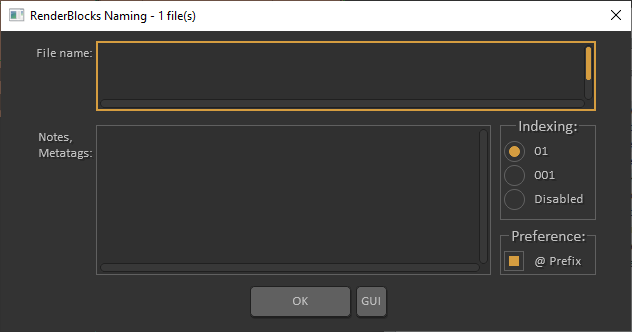
Enter desired name
-
if multiple blocks are selected, they will get index based on the indexing preference (01,001, Disabled)
-
Click OK or press ENTER
| NOTE: Blocks are only exported if they start with @ prefix, which is enabled by default inside Name Editor. |
| NOTE: You can also use the naming editor to name and export regular items inside REAPER, but they will be exported through track rather than through master. |
To change naming rules, run LKC - RenderBlocks - Settings.lua
| VIDEO: https://youtu.be/UiK2zfldrHg |
Exporting
Render settings
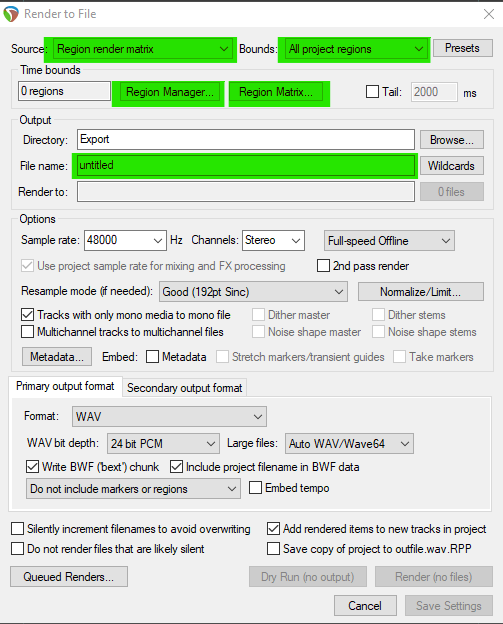
These green-marked settings are handled automatically by Render Blocks, but you can still use them for classic rendering inside the same project. Other properties of this window can be set according to your preference.
| NOTE: If you want to use ReaOpen you should check the Write BFW (‘bext’) chunk аnd Include project filename in BWF data |
| NOTE: Tail value is now included by default and can be customized per block with metatags. |
Custom wildcard
Let’s say we have three render blocks that are named like this:
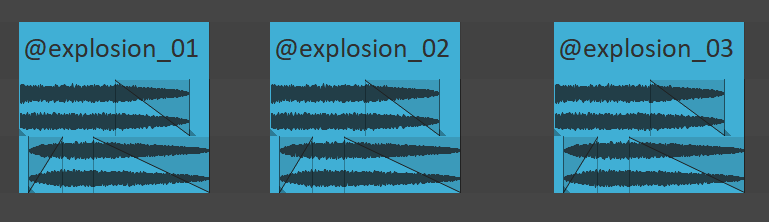
You can use a special $rblock wildcard in the render settings window to create a more complex naming scheme.

The resulting files will look like this:

If you don’t use this wildcard inside the File name field then it will be overridden with render block names:


Render procedure
| NOTE: Rendering works in layers. If you have many blocks stacked on top of each other, that will create additional rendering calls. This can affect rendering speed depending on your computer power and project complexity. Contact us at contact@lkctools.com if you encounter issues with this. |
First approach:
- Make item selection
- Run LKC - RenderBlocks - Render.lua
| VIDEO: https://youtu.be/KnmpO8dv78Q |
Second approach:
- Make time selection
- Run LKC - RenderBlocks - Render.lua
- This will render every named visible block inside time selection
| VIDEO: https://youtu.be/hakzhGjmt-Q |
Iteration
Rendered blocks can be unpacked, edited, repacked, and rendered again. If you have the premium version, you can choose your overwriting preference in the settings gui.
- Ask is the default option, and it will ask you before rendering if it encounters already existing files
- Always will delete every previous file on the same location and replace it with a new one

ReaOpen
You can also optimize your iteration by using ReaOpen. It’s a free script independent of render blocks but supports them as well. ReaOpen can be used in different environments:
-
Wwise
-
Fmod
-
Explorer (WIN)
-
Finder (Mac)
-
Read more about ReaOpen here